
LMS integration / Google Classroom
Run a Vero assignment in Google Classroom
Teacher guide: prepare the task, run the session, and check the student’s PDF.
First connect and check your class. Use a supported saved writing assignment. Typing activities and revisions requiring earlier local drafts are outside this path.
Jump to prepare · run · delivery · another lesson.
1. Prepare the Google assignment
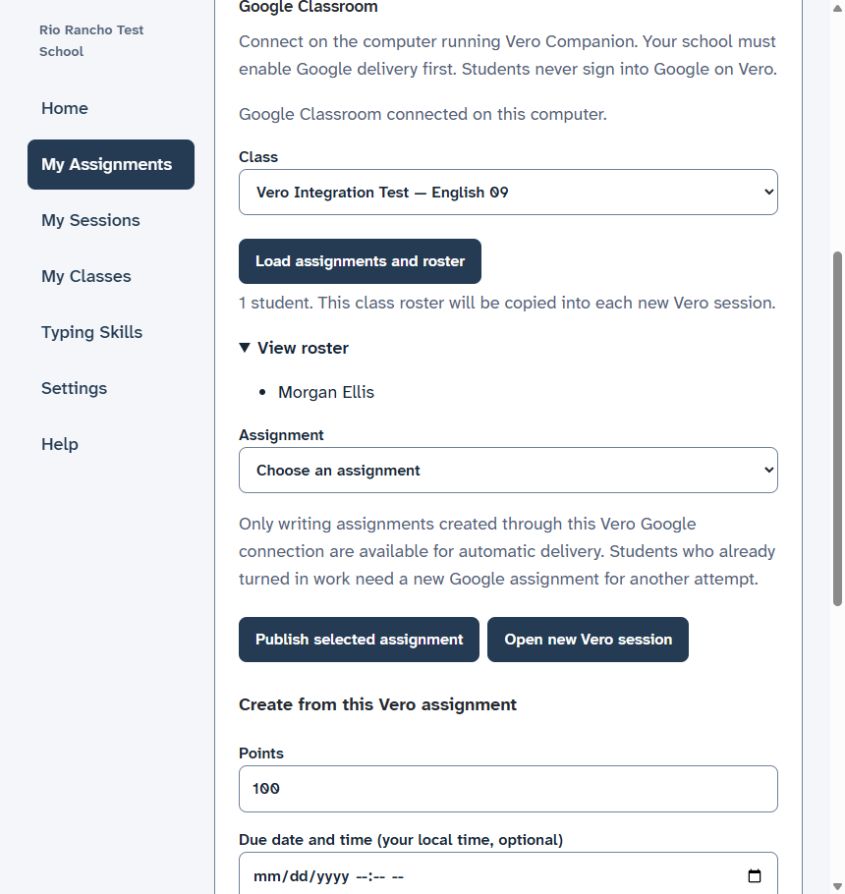
- Vero · My Assignments: open your saved writing task and choose Google Classroom as its destination. Connect if prompted. Choose the class and Load assignments and roster.
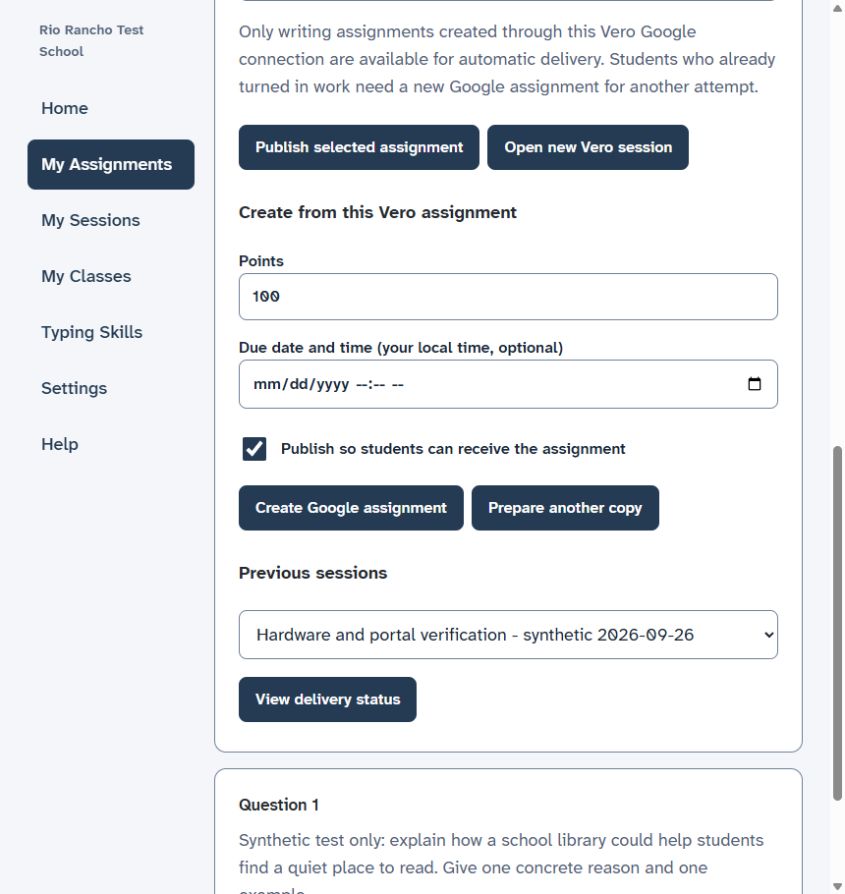
- To create a Google assignment: under Create from this Vero assignment, set Points and the optional Due date and time in your local time. Leave Publish so students can receive the assignment checked when ready. Select Create Google assignment. The writing instructions/questions are included in Google; Writer activity settings stay with the Vero session.
- To reuse a compatible assignment: select it in Assignment. If it says unpublished, choose Publish selected assignment. An assignment made independently in Google Classroom is not an arbitrary link target for automatic Vero submission.
- Check before opening: confirm the class, assignment and roster. Select Open new Vero session. Success means a classroom code and the intended student list appear.
Why are some assignments missing? Google restricts these attachment and turn-in operations to the developer project that created the coursework. This integration offers only compatible assignments. It is not a Google Classroom add-on or a Canvas-style external-tool launch. Google’s attachment rules.
2. Run the writing session
- Student · Vero device: enter the current classroom code and choose the correct name. Vero Writer has no internet access and requires no Google login.
- Teacher · Vero classroom: check each joining student and select Approve. Before writing starts, use Remove for a wrong identity and have the student rejoin correctly.
- Teacher: choose Start writing. Use Pause and Resume as needed. Close joining stops additional students joining; it does not end writing.
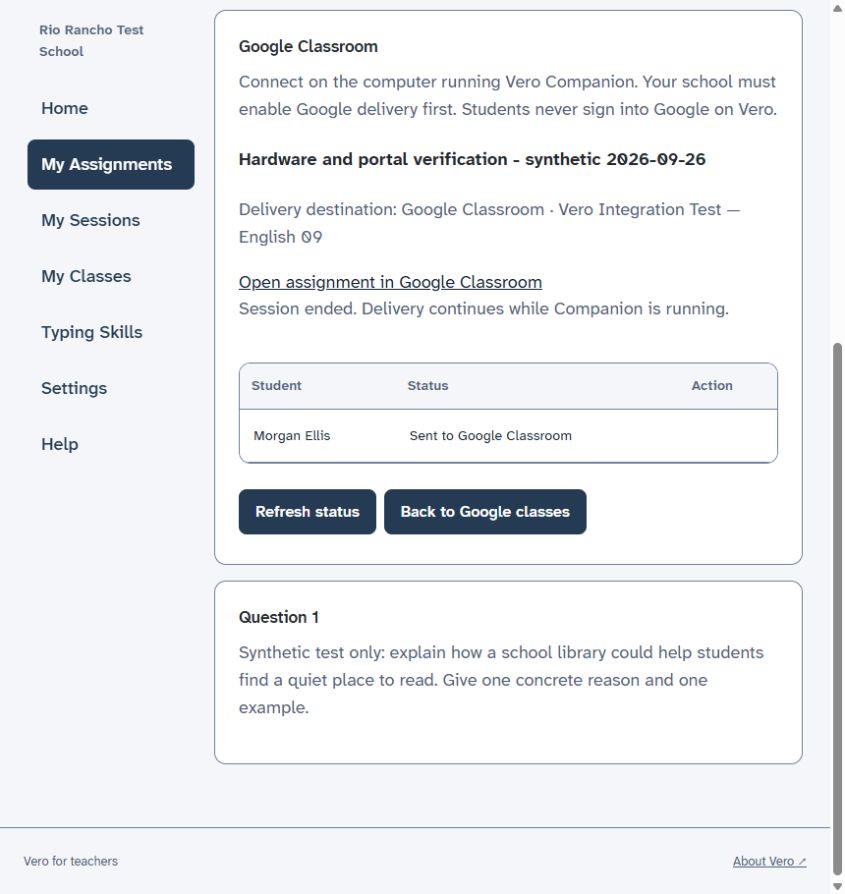
- Teacher: choose End session and confirm when ready. Check for Session ended. Delivery continues while Companion is running. Keep the computer and Companion running while devices finish transferring.
3. Confirm delivery
A device receipt confirms local collection. It does not yet confirm Google turn-in. Companion sends the PDF using the school-approved delegated student authorization and checks the result. It does not grade the writing.
- Vero classroom: wait for each received student’s status to show Sent to Google Classroom. Status refreshes automatically; Refresh status is available. A student who never joined has no writing to deliver.
- Google Classroom: choose Open assignment in Google Classroom. In the teacher’s assignment, open the student’s work and confirm the turned-in submission contains the readable PDF for the correct student.
- Vero · My Sessions: find this lesson later by title/class. Session summaries remain online; writing and PDF exports remain on the receiving computer. Keep that Companion available to access local received work.
Another period or another attempt
For another period, choose its separate Google class and create the assignment there. A session keeps the roster and destination it opened with. Start a new session to pick up roster changes.
For another attempt by a student who has already turned in work, create a new Google assignment. Vero will not overwrite that turned-in work. Prepare another copy starts a separate creation request; then choose Create Google assignment. Use it intentionally, not as a retry for an uncertain result. Previous sessions → View delivery status returns to an existing session.
If delivery needs attention
- Writing received, but not sent
- Keep Companion running and restore the teacher computer’s internet. Received writing remains local. If the error continues, ask IT to check school authorization and Google service access; do not create duplicate assignments to force a retry.
- Wrong class or student
- Stop before starting the lesson. Ask IT to correct the mapping; do not reuse another student’s identity.
- The PDF is missing in Google
- Compare the exact class, assignment and student with Vero. Report the displayed delivery status to support without sending passwords or student writing.
- An old session says Awaiting device update
- My Sessions shows the last saved record. To investigate a receipt or delivery, use the receiving computer with Companion running and open that session’s delivery status. Confirmed receipts and deliveries can update its saved record without restarting the classroom.
Google’s turn-in API requires the student identity; school delegation supplies that identity without a login on Writer. Demo evidence includes physical Bluetooth delivery and a teacher-visible PDF. Full-class capacity, school-specific authorization and failure/revocation acceptance still require testing in the intended school.