
LMS integration / Google Classroom
Connect Google Classroom on your computer
Teacher setup after IT has enabled your school’s connection.
Before you begin: ask IT to confirm the school setup and delivery test are complete. Use your configured teacher computer, with Companion running and internet available on that computer.
Open your school’s connection
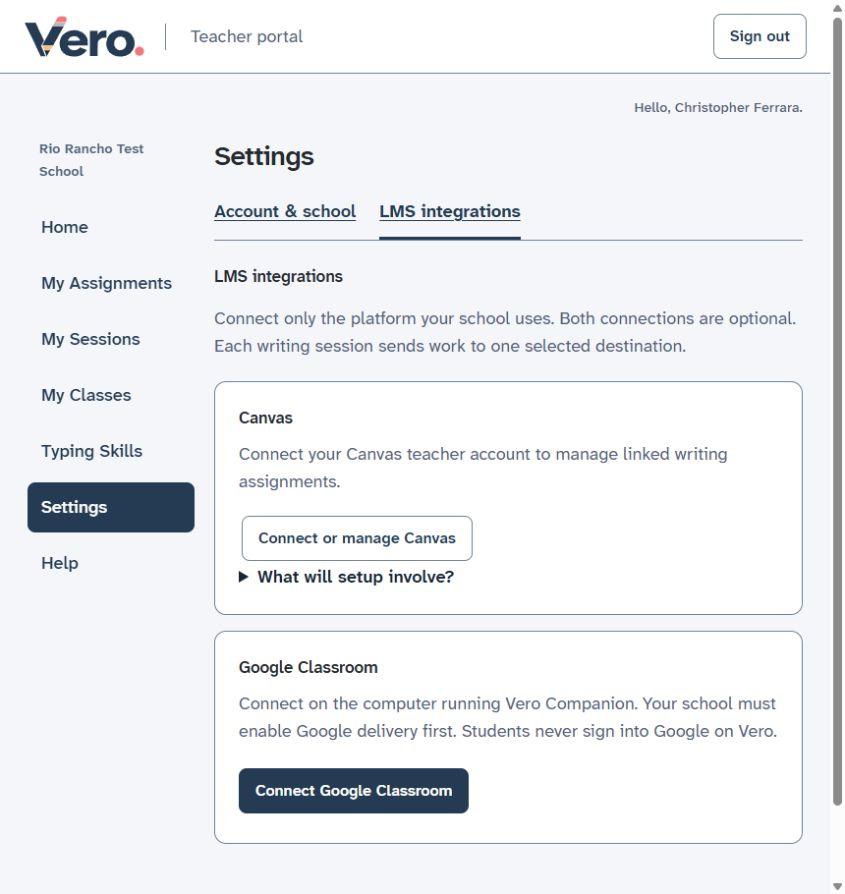
- Vero teacher portal: Sign in to teach.vero.school with your Vero school account. Open Settings → LMS integrations.
- Google Classroom panel: Choose Connect Google Classroom. If Companion asks, approve your teacher connection on this computer. This opens the school-configured Google connection; it is not a Google signup or a request for students to sign in.
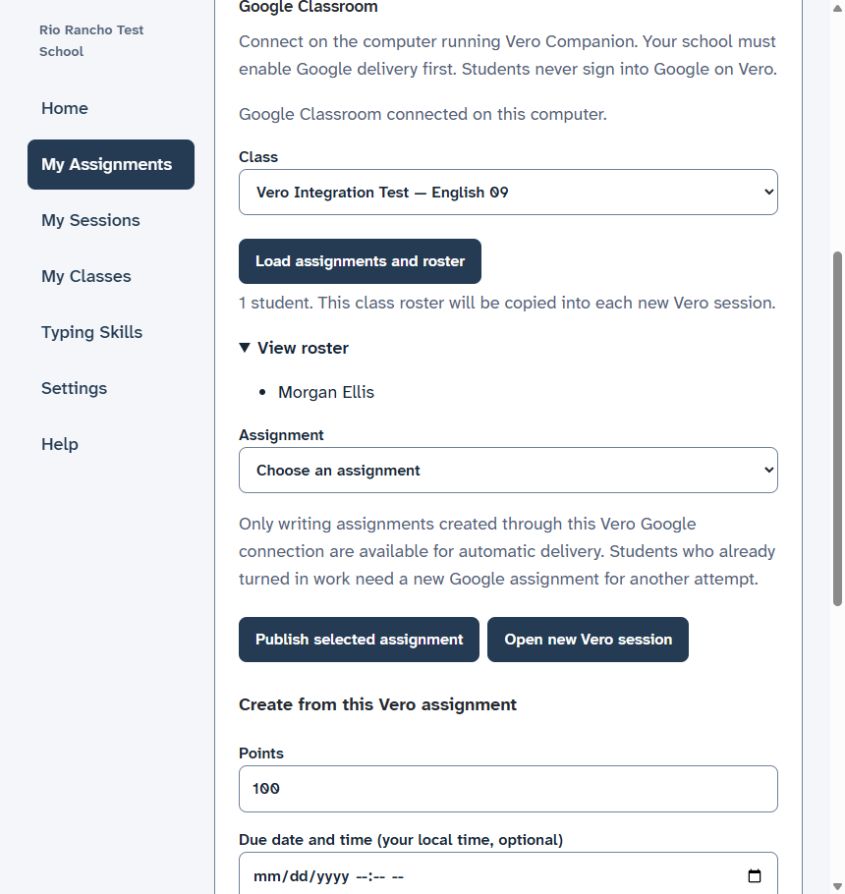
- Check the result: look for Google Classroom connected on this computer. Select the intended Class, then choose Load assignments and roster.
- Check identities: open View roster and compare the names/count with the intended Google class. If the wrong class or people appear, stop and ask IT to check the mapping before opening a session.
What happens next time?
Keep Companion running on the configured computer. You may need to reopen the connection panel or sign back into Vero; that is different from granting new school permissions. A different computer needs IT configuration. Do not copy credentials between computers.
If you cannot connect
- Cannot reach the connection
- Start Companion on this computer and retry. If the browser blocks local access, ask IT to check the approved browser settings.
- No class, wrong roster, or permission error
- Ask IT to check the authorized teacher, class membership, configured course/student access and Google services. Creating a second Google account will not repair the connection.
- No assignments listed
- Create an assignment from a saved Vero writing task. Only compatible assignments created through this connection are offered for automatic delivery.