
Run a Vero assignment
Choose where to create the task. Both routes meet at the same Canvas-connected classroom.
First, connect your Canvas account. Use a supported writing assignment. Typing activities and revision workshops that depend on previous local drafts are not supported by this Canvas export path yet.
On this page: start in Vero · start in Canvas · run the classroom · check delivery · solve problems.
Teacher · Each lesson
Choose one starting route: Option A if the task is saved in Vero; Option B if you are building it in Canvas. Then continue to Open and run the classroom. You do not need to complete both routes.
Option A: create the task in Vero
- Create and save the writing assignment in My Assignments.
- Open it and select Create or open in Canvas.
- Choose the Vero assignment and the correct Canvas course, then select Create and publish.
- The published assignment opens in Canvas, including the writing prompt and activity settings, with 100 possible points. Choose Create as draft instead if you want to set points, due dates or availability first. You can publish an existing draft from Vero using Publish and open in Canvas. Canvas course publication and availability restrictions still apply.
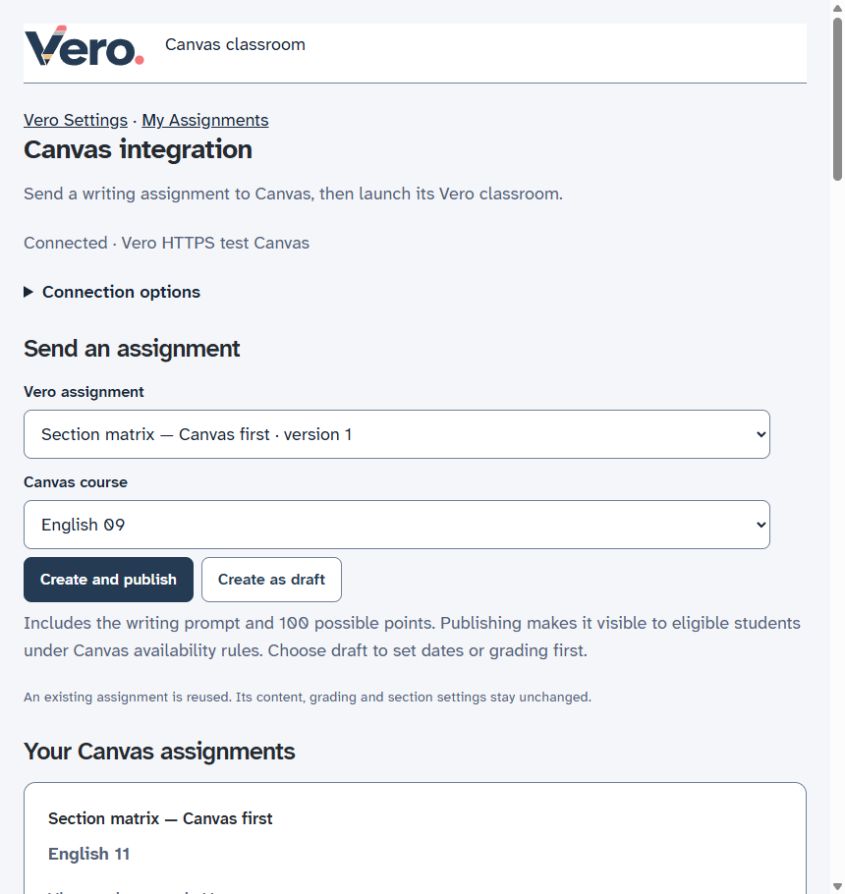
Repeating creation for the same Vero assignment and Canvas course reuses its existing destination. It does not create a fresh assignment for each click. Later edits in Vero do not rewrite a linked classroom’s saved task; copy the Vero assignment if you intentionally need a new destination.
Exported assignments show their Canvas course name. Repeating Create and publish reuses and, if needed, publishes the existing assignment without changing its content or grading settings.
Option B: create the assignment in Canvas
- In the intended Canvas course, create an assignment.
- Set the submission type to External Tool, select Find, and choose your school’s Vero tool.
- Select a saved Vero writing activity and choose Use this activity, or create a writing activity in the chooser. Connect from Vero Settings first if your saved Vero tasks are missing.
- Use the option to load the tool in a new tab/window. Save the Canvas assignment, set its grading and availability options, and Publish.
Tool labels can vary by school. This route creates an external-tool assignment; it does not convert an existing assignment that already contains student work.
Activities newly created in the Canvas chooser are added to My Assignments the next time you open Settings → LMS integrations → Connect or manage Canvas in Vero. This uses your signed-in school account. Existing library edits, deletions and classroom snapshots are preserved.
Open and run the classroom
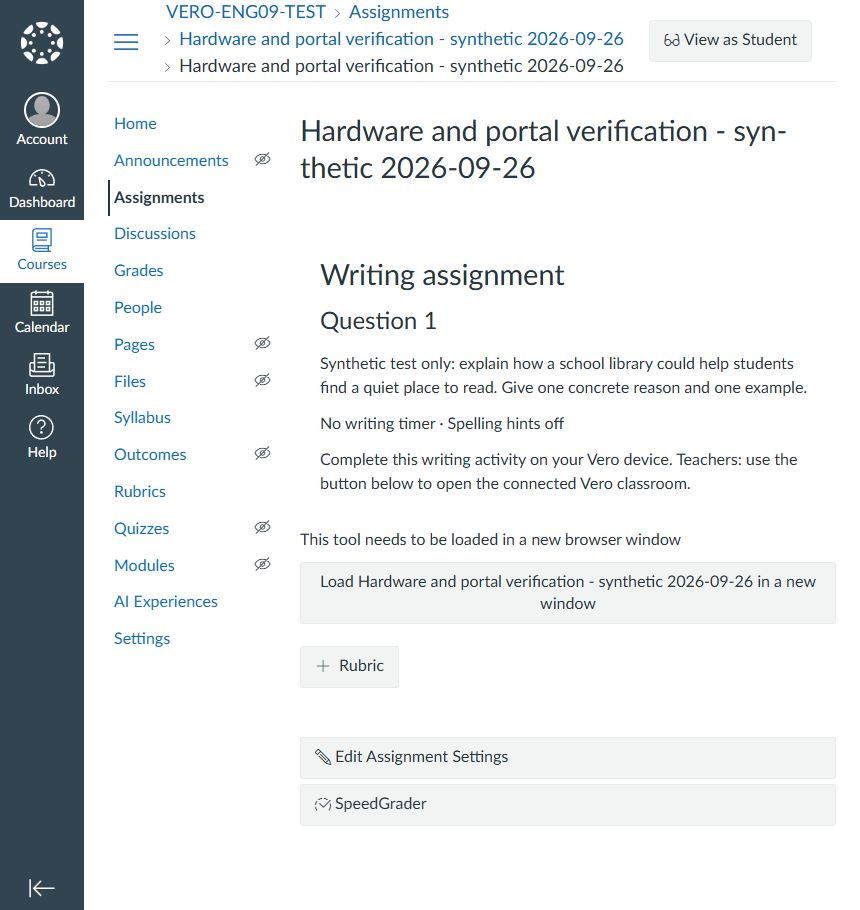
- Open the assignment in Canvas. Select Load [assignment name] in a new window. This launches the connected classroom.
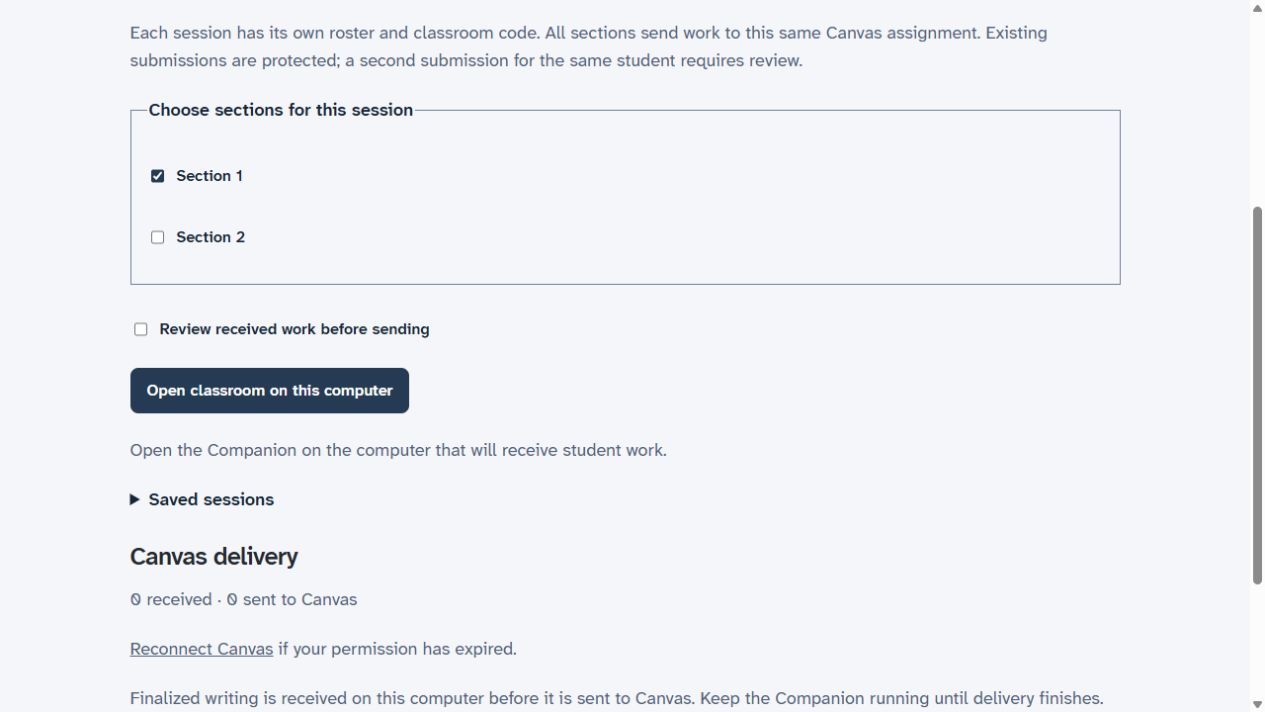
- Make sure Companion is running on this computer and connected to the Vero devices. Choose Review received work before sending only if you want to release submissions manually.
- Choose the section or sections joining this session, then select Open classroom on this computer. Allow the expected local Companion connection if your browser or Companion requests it. If a school policy blocks it, ask IT rather than bypassing browser security.
- Give students the displayed classroom code. They enter it on Vero and select their names. Check each identity and select Approve. Remove a wrong-name entry before writing starts, then have the student rejoin correctly.
- Select Start writing. Use Pause and Resume when needed. Close joining stops new entries; End session tells students’ devices to finalize their work.
Confirm the writing reached Canvas
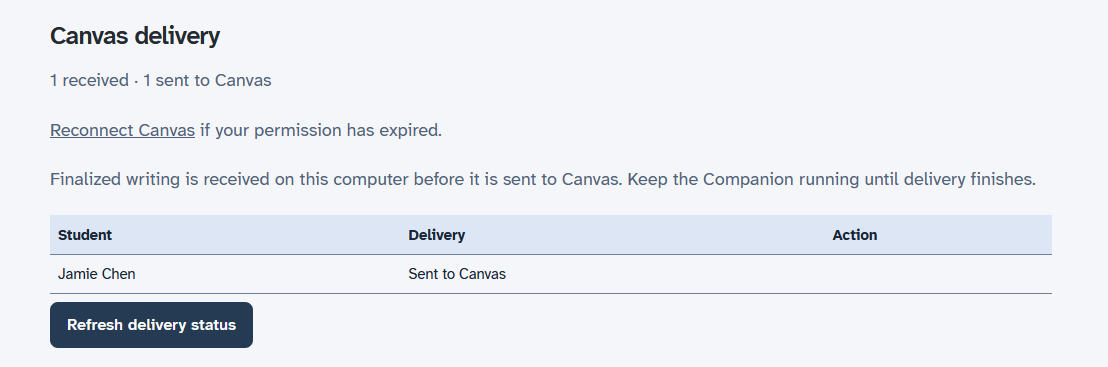
A receipt on the student’s device means Companion received the writing. Sent to Canvas is a separate confirmation. Ending the session does not mean every file has finished transferring.
- Keep Companion running and the computer online. The classroom shows Session ended after ending, and delivery status updates automatically.
- If you selected review-before-send, select Send to Canvas for each ready submission.
- Check the received and sent counts and each student’s status. Students who never joined do not have submissions to send.
- Open the assignment in Canvas SpeedGrader and check the intended student’s PDF. Vero delivers writing; it does not assign a grade.
Find the session later
Open My Sessions in Vero. Each run has its own entry, including its section and received/delivered counts. Saved history remains visible when Companion is offline; local writing and exports require the receiving computer. A saved assignment appears in My Assignments before a session exists.
If something does not look right
- The classroom will not open
- Check that the Canvas assignment is published, your Canvas account is connected, and Companion is running on this computer.
- The classroom code is not found
- Use the current code shown in the connected classroom. Check the Pi’s Bluetooth connection and that only the intended Companion is using the adapter.
- Received in Vero, but not sent
- Keep Companion running. Check whether the submission needs your review or Canvas needs reconnecting. If offered, use Check Canvas again to verify an uncertain delivery. Do not create a duplicate assignment or resubmit blindly.
- No preview or annotations in SpeedGrader
- Try downloading the PDF to confirm it opens, then ask IT to check Canvas DocViewer. Our local test Canvas has no configured DocViewer. Preview and annotation must be verified in your school’s hosted Canvas before a pilot; a successful download alone is not enough.
- A later class or section needs the same task
- Choose its intended Canvas destination carefully. Reusing the same Vero task in the same Canvas course reuses the assignment. Choose that section in the connected Vero classroom and open a new session. Each session has a separate roster and classroom code; all selected sections send work to the same Canvas assignment. Use Saved sessions to resume an earlier run.
- The roster changed
- Existing linked classroom rosters are protected. Do not force a different roster into an old session. Start a new session from the same Canvas assignment to load current section membership. Earlier session rosters and submissions remain unchanged.
Canvas reference: Supported preview file types. Need help? Email support@vero.school; include the step and error, not student writing or passwords.