
Connect your Canvas account
Usually a one-time setup for each teacher’s Canvas account.
Teacher · After IT setup
Before you begin
- Your school’s IT team must register and enable Vero in Canvas and configure the school connection in Vero. Share the school installation guide and pilot kit with your administrator.
- You need your own Canvas teacher account and an active Vero school account.
- The local Companion must be installed and configured on the computer that will receive writing. IT should verify Bluetooth and browser access to Companion before the lesson.
If Canvas is unavailable in Vero Settings, ask your school administrator to finish setup. Teachers do not need to create developer keys or paste API tokens.
Connect from Vero
- Sign in to the Vero teacher portal. Open Settings → LMS integrations and select Connect or manage Canvas.
- Select Connect Canvas. If your school has more than one configured Canvas connection, choose the correct one.
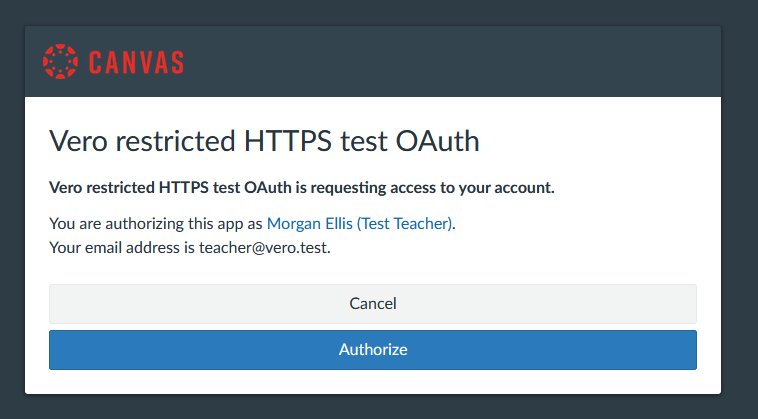
- Sign in to your school’s Canvas with your teacher account. On the authorization screen, check the account name and email, then select Authorize.
- When you return to Vero, check that the integration says Connected and lists your Canvas courses.
Do I connect again for every lesson?
No. Vero saves the authorization encrypted and refreshes access automatically. You still open the assignment and its classroom for each session, and Companion must be running. Signing back into Canvas or Vero after a browser session expires is different from granting access again.
Use Reconnect Canvas if permission has been revoked or the saved authorization no longer works. Use the same teacher account; switching accounts is not a way to transfer existing assignment links.
Optional: bring sections into Vero
In My Classes, choose Import from LMS, then Canvas. Select the course and sections, preview the changes and review student matches before confirming. Each section becomes a separate Vero class. If Vero flags a conflicting match, ask an administrator to resolve it rather than making a duplicate by hand.
This import is for using Canvas rosters in Vero’s class list. A Canvas-launched classroom retrieves its roster from Canvas, so a separate class import is not required for that launch.
Import updates do not rewrite previous student work. Existing classroom rosters and assignment destinations remain tied to their original session. Names alone are not used to decide where submissions belong.